Comparison
OMO Kids vs Apple Screen Time: Features and Setup
Start with the rule your family needs. Apple provides time and access controls; OMO adds a short learning task before selected entertainment apps.
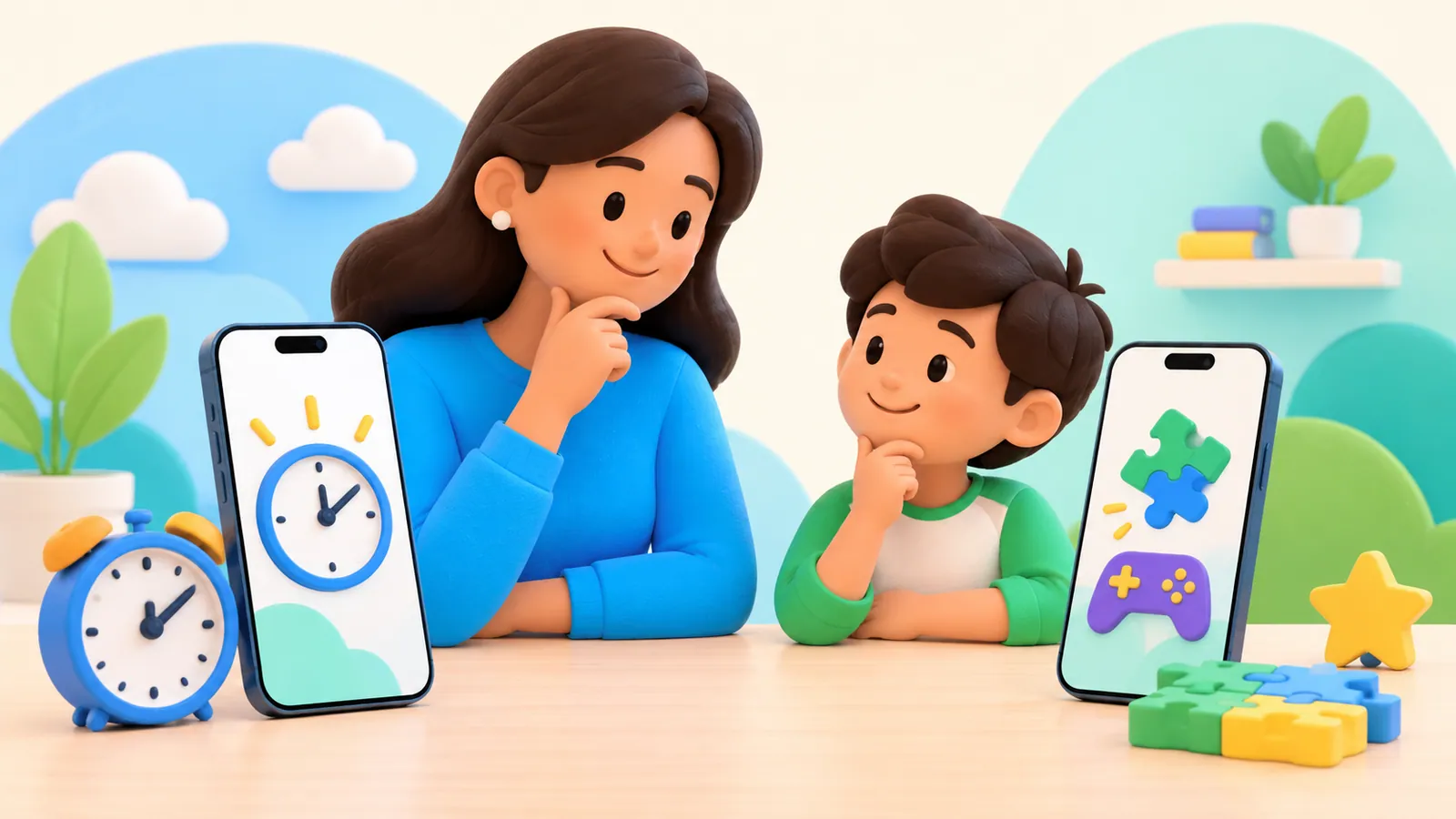
Start with Apple Screen Time if you need a daily time limit, a schedule, or content restrictions. Consider OMO Kids if you specifically want a short educational task before access to selected entertainment apps. You can also agree on learning-before-play as a family rule without installing an app.
The useful comparison is whether the extra learning step solves a problem your family actually has. OMO requires its own setup in addition to Apple's family and permission requirements.
OMO Kids publishes this comparison. It is based on official Apple documentation, OMO's public feature information, and the US App Store listing checked September 15, 2026. It is not a hands-on performance test or an independent ranking. We have not measured which option blocks more reliably on your devices.
What Apple Screen Time already does
Screen Time is built into Apple's system; it does not require a separate Screen Time subscription. Its parental controls address time, access, communication, and age-appropriate content. For many families, that is the entire job they need a tool to do. Apple's parental controls overview.
For example, if your rule is “entertainment stays within an agreed daily amount,” try that boundary before adding a learning requirement. If the problem is an app staying open after a limit, use a Screen Time troubleshooting process before assuming a paid app is necessary.
Apple's interface now has two relevant versions:
| Family setup | Time controls to look for |
|---|---|
| Updated parental controls for version 27 | Time Allowances and Screen Time Schedule. |
| Legacy Screen Time, checked against iOS 26 | App Limits and Downtime. |
Apple documents a family upgrade process for the new controls; legacy devices can continue using earlier settings. Choose instructions that match the family setup, not just the newest model of iPhone you own. Family upgrade guide; iOS 26 time controls.
What OMO adds
OMO describes a cycle in which selected entertainment apps are restricted, the child completes a short quiz, and temporary access becomes available before the restriction returns. It also describes a parent view of quiz activity and learning progress. These are product descriptions, not measured learning outcomes. OMO features.
That can fit a family that has already decided to place a small learning task before entertainment and wants help applying that rule. It adds work too: choosing a suitable task, explaining the condition, connecting devices, and checking that the access cycle works.
A child completing a quiz shows that the task was completed. It does not by itself establish better attention, self-regulation, or a healthier relationship with games. Choose the arrangement for its practical fit and review how it affects your household.
Compare the job, requirements, and limits
| Question | Apple Screen Time | OMO Kids |
|---|---|---|
| What rule is it designed to support? | Limits on time, access, and other parental settings. | A learning task before temporary access to selected entertainment apps. |
| Does it automatically require an educational quiz? | The reviewed built-in controls do not describe this condition. A parent can manage a learning-first agreement separately. | Short quizzes are part of OMO's described access cycle. |
| What extra installation is needed? | No separate Screen Time app. | OMO on the parent's and child's supported devices. |
| How is the child connected? | Family Sharing supports management from a parent's device. Apple also documents qualified direct setup on a teen's device. | OMO's described setup requires the child's own Apple Account in the same family, Parent/Child roles in OMO, device linking, and Family Controls approval. |
| What information can a parent review? | App and website activity when reporting is enabled. | OMO describes quiz activity and learning progress. Do not assume the two dashboards show the same information. |
| What happens at the boundary? | Depends on the selected allowance, schedule, and permitted exceptions. | OMO describes timed access followed by automatic re-locking; verify that cycle on the child's device. |
| Is it a substitute for checking websites? | Review the relevant web controls and supported browser. | Do not assume a selected app restriction covers the service's website. Test that route separately. |
| What does it cost? | Built-in system feature. | The App Store lists in-app purchases. Review the offer and renewal terms shown before choosing a subscription. |
Sources for the comparison: Apple's family setup and reporting, Apple parental controls, OMO features, and OMO's US App Store listing.
A free app download is not the same as unlimited free access to its paid features. Check the offer presented to your account instead of relying on a price copied from an older article.
Check whether your devices fit OMO
The OMO setup described here uses two iPhones or iPads, with the app installed on both. The US listing specifies iOS 17.6+ or iPadOS 17.6+. Your child needs their own eligible Apple Account in the same Family Sharing group; selecting Child inside OMO is a separate app role. App Store compatibility; OMO requirements.
Keep the approving adult and child's device available during permission setup. Then follow the OMO setup guide through the final re-lock test.
The new Apple time-control menus and OMO's minimum operating-system requirement are different things. Meeting an App Store minimum does not mean your family already has the updated Apple interface.
If the parent uses a non-Apple phone, do not assume OMO's described two-device setup will fit. Apple documents a way to manage Screen Time directly on an eligible 13–17-year-old's iPhone or iPad, with regional conditions. Review that option for your family rather than generalizing it to every child's age. Apple's setup options.
Two boundaries that matter when choosing
OMO depends on Apple's permissions. It does not remove the need for correct Apple account and family setup. Installing it is not a promised repair for a Screen Time syncing issue or a missing child account.
An app restriction is not a content-section filter. Do not choose OMO on the assumption that it blocks only Shorts inside YouTube while leaving the rest of YouTube open. That specific capability is not established by the product information reviewed here. The same caution applies to promises of cognitive interruptions inside an ongoing game: this comparison does not treat those as verified current OMO features.
For either option, name the actual target: the installed app on this iPad, its website in a browser, or access on another device. Test each route you intend to cover.
Use the same home check for either option
Before making a tool part of the daily routine, run a small, supervised check. This is a proposed family test, not a result from our testing.
- Write one rule. For example: a chosen entertainment app becomes available during an agreed window. If you use OMO, add the short learning condition. The example is a family choice, not an age-based recommendation.
- Choose one nonessential app. Keep important communication and school tools available.
- Check the boundary before access. Confirm the behavior matches the rule you saved.
- Check the permission to continue. For Apple, this may mean the allowed time or an approved exception. For OMO, complete the quiz and observe the access time actually shown.
- Check the end. Try the same app after access should finish. Repeat a small check after leaving the app idle; do not assume unused OMO minutes are banked.
- Check the other routes. Include the service's website and any second device your child normally uses.
If the result differs from the rule, keep the test small and resolve the mismatch before adding more apps. Avoid presenting an unpredictable interruption to your child as a deliberate consequence.
Choose the smallest setup that does the job
Use Apple Screen Time first when the desired rule is a time boundary or access restriction. There is no need to add quizzes solely to get a timer.
Consider OMO when the family wants the learning-before-access condition, the devices and accounts meet its requirements, and the full cycle works in your test. Keep the family's total limit and stopping time clear; completing another task does not have to mean endless additional entertainment.
If the learning requirement leads to repeated distress or turns every exercise into a negotiation over access, reconsider the arrangement. A simpler routine may be easier for the family to follow. You can write that routine in a family media plan before deciding which tool should support it.
For details about the information OMO stores and its optional parent attribution choices, read the privacy policy. If the setup fits, the next step is the complete OMO connection guide.
Sources
We identify organizations and evidence types so readers can evaluate each claim. See our editorial policy.
- Set up parental controls to manage your child's iPhone or iPad - Apple Support — Apple Support.
- Set schedules with Screen Time on iPhone - Apple Support — Apple Support.
- Use Screen Time to manage your child's iPhone or iPad - Apple Support — Apple Support.
- Update your family devices to iOS 27, iPadOS 27, macOS 27, watchOS 27, and visionOS 27 - Apple Support — Apple Support.
- OMO Kids: Earn Screen Time App - App Store — apps.apple.com.