Parental Controls
Can You Stop a Child from Deleting Apps on an iPhone?
Understand app-deletion restrictions, missing Home Screen icons, installation approvals, and the limits of keeping a control app installed.
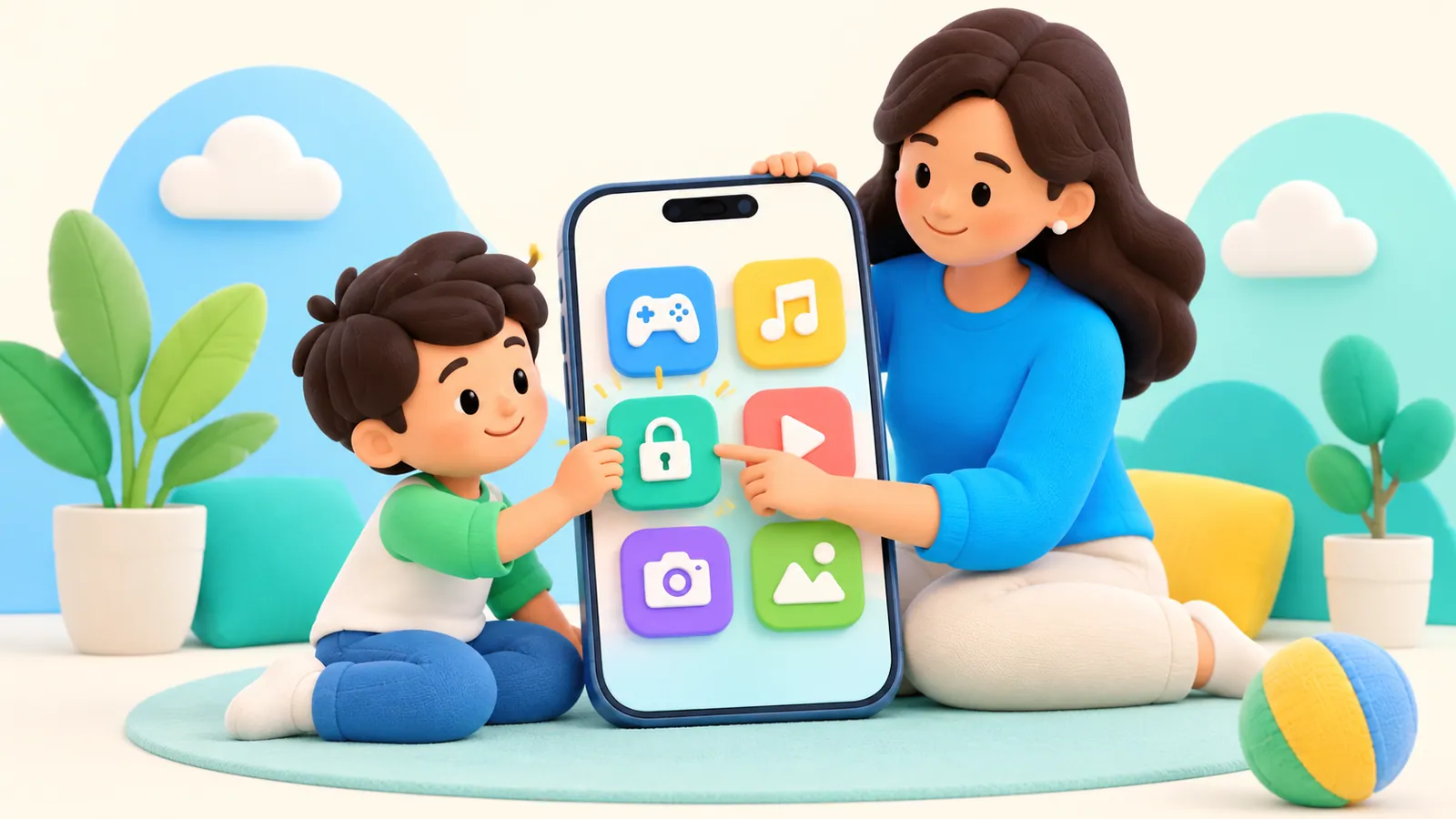
Apple provides a parental-control setting for app deletion. It can restrict ordinary removal of apps, but it should not be treated as proof that every parental-control feature will keep working under every circumstance.
First establish what actually happened. An app missing from the Home Screen, an app blocked by Screen Time, and an app deleted from the device are different situations. Changing deletion permissions will not necessarily resolve all three.
If the icon has disappeared
Start by looking for the app rather than accusing your child of removing it. Apple’s iPhone app-removal guide distinguishes removing an app from the Home Screen from deleting it. The first can leave the app in App Library.
A blocked app is different again. In Apple’s updated family controls, blocking an app can leave it installed but dimmed. Apple describes that behavior in its parental-controls guide.
Use the following questions to narrow the issue:
| What you observe | What to check next |
|---|---|
| The Home Screen icon is gone | Search for the app or check App Library |
| The icon is present but unavailable | Review the relevant Screen Time restriction |
| The app is no longer installed | Review deletion permissions and who made the change |
| The app opens, but its parental-control feature does not work | Check the feature’s authorization and setup separately |
| An adult also cannot delete an app | Check family restrictions or school/work management |
This is a sequence for identifying the problem, not a diagnostic test of any specific app.
Find the deletion restriction for your Screen Time experience
Apple’s current app-deletion support page confirms that a parental-control setting called Deleting Apps can prevent removal. Its troubleshooting instructions tell an authorized adult to allow deletion when that is the intended action.
The earlier Screen Time experience groups purchase and removal restrictions under iTunes & App Store Purchases. In that experience, review Deleting Apps and choose the option that does not allow deletion. The version 26 restrictions guide documents the surrounding Content & Privacy Restrictions area.
Apple’s redesigned version 27 family controls use Apps & Websites and an App Store settings area. Start from the child’s Family settings when that is the experience your family has. The current overview does not spell out every final deletion-setting screen, so an older route should not be presented as a verified version 27 button sequence.
If the option is unclear, use Apple’s current device guidance or support. Avoid changing account ownership or erasing the phone just to locate a deletion control.
Keep installing, deleting, and buying separate
A family might reasonably allow new educational apps after approval while preventing children from removing a necessary school app without discussing it first. Those are separate choices.
Ask to Buy is about eligible purchases and downloads. It is not the setting that prevents deletion. Apple’s Ask to Buy documentation also explains that a child redownloading their own purchase or installing an update does not generate a new approval request.
That distinction helps when a deleted app returns. The return may involve an existing purchase rather than a new purchase request. Before changing several restrictions, identify whether the issue is access to the app, deletion, installation, or spending.
A practical adult checklist can stay short:
- Which apps need to remain installed?
- Who may remove an app that is no longer needed?
- How are new downloads reviewed?
- Is spending inside an allowed app separately controlled?
- Does the child know how to report an app that is not working?
The goal is a maintainable arrangement, not an installation list that can never change.
Do not use app presence as a health check
Seeing a parental-control app’s icon proves very little about its current state. It does not, by itself, establish that permissions remain active, devices are linked correctly, or a selected app will be restricted when expected.
This matters when a parent’s real question is, “Can my child delete the control app and remove the limits?” An app-removal restriction may be one part of the setup, but the product’s authorization and enforcement still need their own checks.
For OMO, use the documented setup and access-cycle check. Do not infer an uninstall-protection guarantee from the icon or from a general Apple setting. No current-device uninstall or recovery test was performed for this article.
Make a harmless confirmation check
After changing the setting, choose an ordinary, nonessential app to review with your child. Confirm whether the usual removal action is unavailable as intended. You do not need to delete a school app, a communication app, or an app containing important work to make this check.
Then verify the other half of the arrangement: an authorized adult still knows how to change the restriction when maintenance is necessary. A broken app may need legitimate troubleshooting. Keep a record of the setting you changed, but keep passcodes out of any shared checklist.
If the phone is managed by a school or another organization, Apple notes that device management can also prevent app deletion. Ask the administrator about the managed app. Do not assume the family’s Screen Time setting is the only control on the device.
Removing an app does not resolve every obligation attached to it
Apple warns that deleting an app does not automatically cancel an in-app subscription. If the family decides to stop using a paid app, review the subscription through the relevant account before assuming that spending has ended.
Likewise, be careful with apps holding schoolwork or other personal information. The deletion decision should include where the important data is stored and whether the child can access it afterward.
Explain the rule in practical terms: “If an app is taking up space or not working, tell us and we will sort it out.” A restriction can keep an app in place, but the family still needs a route for updating, replacing, or removing it responsibly.
Sources
We identify organizations and evidence types so readers can evaluate each claim. See our editorial policy.
- Delete apps on your iPhone or iPad - Apple Support — Apple Support.
- Block apps, app downloads, websites, and purchases on iPhone - Apple Support — Apple Support.
- Set up parental controls to manage your child's iPhone or iPad - Apple Support — Apple Support.
- Approve what your child can purchase and download with Ask to Buy - Apple Support — Apple Support.
- Remove or delete apps from iPhone - Apple Support — Apple Support.