Parental Controls
School-Managed iPad vs Personal iPad: Who Controls What?
Understand why a school iPad may have different restrictions from a personal device. Includes a responsibility map and a useful support request template.
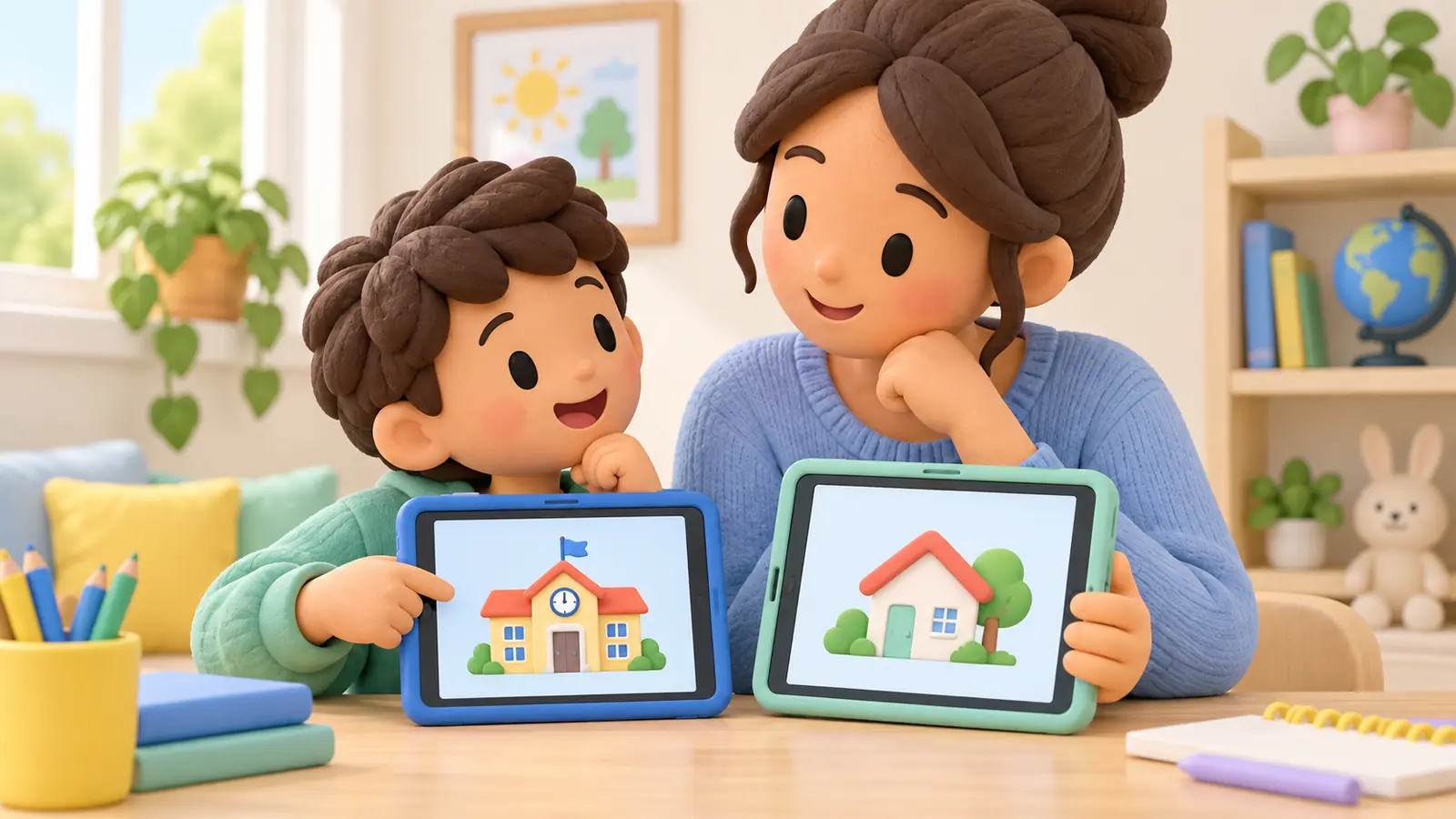
A school-managed iPad may have settings and restrictions controlled by the school. That is different from an ordinary personal iPad connected to a household's Apple family. Before trying to change a blocked feature, identify who owns and manages the device.
Apple explains that supervision gives an organization additional management capabilities. The actual configuration depends on the organization; a supervision label does not reveal every policy in place.
Identify the arrangement first
Check the school's device agreement and the information displayed on the iPad. Apple's guidance describes how supervised devices identify their organization and how management profiles can be reviewed.
Do not remove a profile, erase the device, or sign out of school accounts to troubleshoot a routine problem. Those actions may interrupt required access or conflict with the school's management process.
Make a responsibility map
| Question | Best starting point |
|---|---|
| A required school app is missing | Teacher or school technology support |
| A school website is blocked | School support, with the exact URL and task |
| The child uses entertainment after homework | Family routine, then school guidance on available home controls |
| A management setting cannot be changed | The organization managing the iPad |
| A personal family account is mixed with school use | Ask the school before changing accounts or data |
The map is a starting guide. Your school may assign responsibilities differently, so keep its actual support route available.
Describe the task that failed
“The iPad is blocked” is difficult to investigate. A more useful report is: “The reading assignment opens, but the linked audio page does not load on our home connection.”
Record the app or website, the approximate time, the visible message, and whether the same task works at school. Include a screenshot only if it does not expose private student information unnecessarily.
A support request you can adapt
“Our child needs to complete the assigned activity in [app or website]. The first page opens, but [specific step] fails with [message]. This happened on [date] at home. We have not removed management settings or changed the school account. Which setting or support step should we check?”
Replace the brackets with actual details. Do not send passwords, recovery codes, or other students' information.
Keep household boundaries usable
Even when the school manages technical settings, the family can discuss where the device is used, when required work happens, and what happens after the assignment. Ask the school what options are compatible with its setup before installing a parental-control app.
Do not assume OMO or another household app can override school management, use a school-issued account as a personal child account, or control every device configuration. Verify compatibility through the school and the product's current documentation.
Review access without taking over administration
When a fix is provided, test the original assignment and confirm that it saves or submits correctly. Avoid broad changes unrelated to the problem.
For ordinary household exceptions, see keeping school apps and contacts available. For a personal tablet shared by siblings, use one iPad, two kids; that household situation is different from an organization's managed Shared iPad deployment.
Documentation check
Apple documentation was checked on September 27, 2026. This guide describes documented controls; it is not a report of hands-on testing on your device or a school-managed configuration. Available settings can differ by software version and management policy.
Sources
We identify organizations and evidence types so readers can evaluate each claim. See our editorial policy.
- supervision gives an organization additional management capabilities — Apple. Source guidance.