Platform Safety
Nintendo Switch Parental Controls: Play Time, Purchases, and Accounts
Separate Nintendo Switch and Switch 2 console limits, parental app settings and eShop restrictions. Review shared play time, GameChat and purchases.
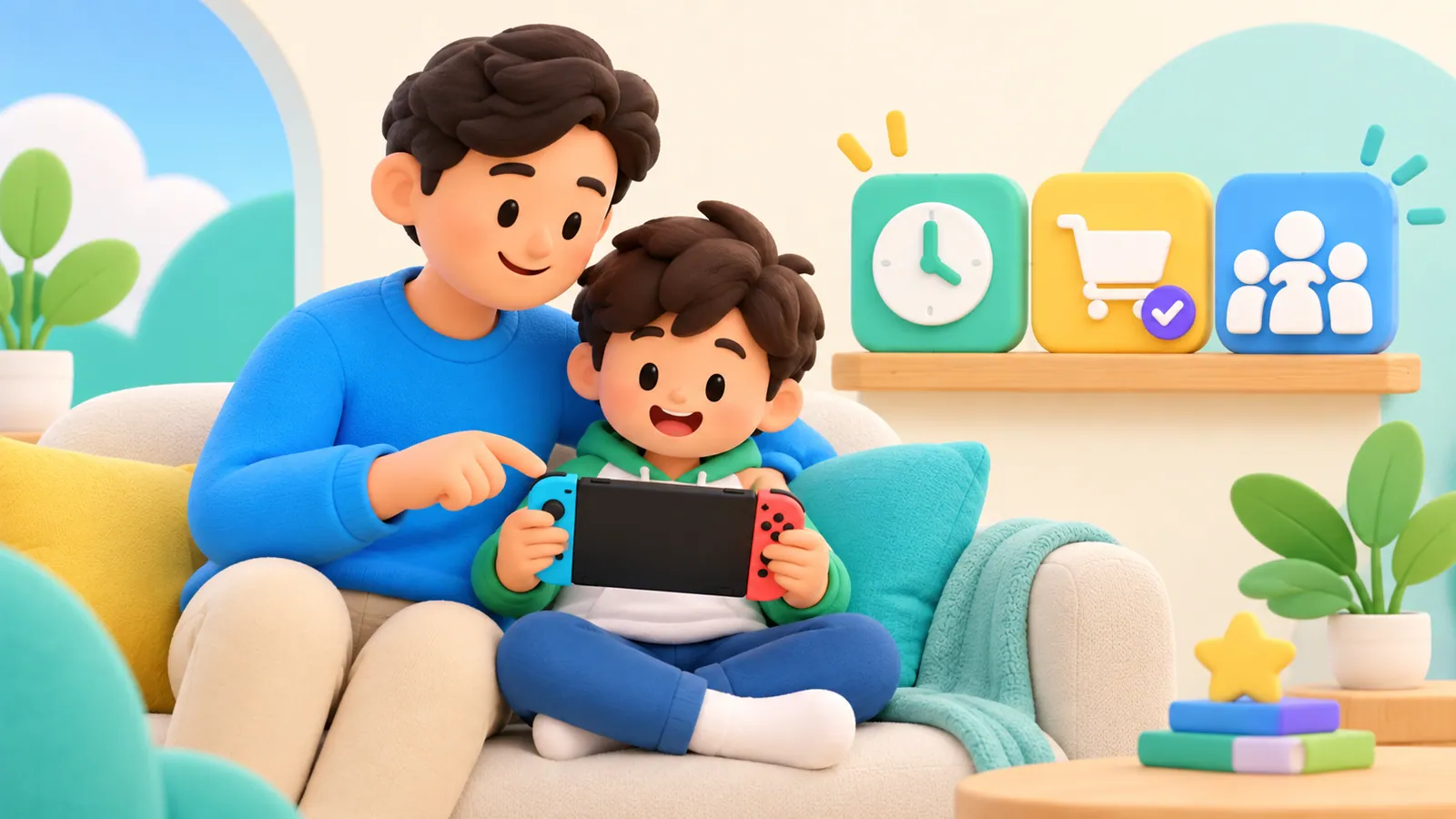
Nintendo Switch parental controls are split between the console, Nintendo's parental-controls app, and the child's Nintendo Account. Set up the part that matches your concern: game access, time, communication, or purchases. Connecting the phone app does not automatically settle all four.
This distinction matters for both Nintendo Switch and Switch 2, especially when siblings share a console. Nintendo's current documentation describes some restrictions at the console level and other permissions at the individual account level. This guide is a documentation review, not a report of hands-on testing.
Find the right place for each rule
Keep this map beside you while reviewing the family's setup:
| Your question | Where to begin | What to confirm afterward |
|---|---|---|
| Which games may be opened? | Console or parental-controls app | Rating restrictions and any individual game exceptions |
| How long and when can the system be played? | Nintendo Switch Parental Controls app | Daily limit, schedule, and what happens at the endpoint |
| Can the child buy something? | Supervised Nintendo Account settings | Purchase restrictions for the correct account |
| Can the child use Switch 2 GameChat? | The parental-controls app and that user's permissions | Approved contacts and any video permission |
Nintendo provides the parental-controls app free for iOS and Android. An adult Nintendo Account aged 18 or over is required to use it. The original Switch supports on-console content and communication restrictions, while the app provides the additional time controls. Nintendo's current overview.
Before starting, identify each console and who uses it. On a shared system, make sure the displayed user and Nintendo Account belong to the child you are reviewing. Keep the adult's account and parental PIN under adult control, with a recovery plan that does not depend on the child remembering them.
Choose whether the endpoint is a reminder or a stop
For the original Switch, Nintendo's setup guide starts at System Settings → Parental Controls → Parental Controls Settings. Once the console is linked to the app, review the app's Play-Time Limit and bedtime settings. The guide distinguishes a notification from Suspend Play When Time's Up: without suspension, a notice can appear while software remains playable. Nintendo's setup and time-limit instructions.
That difference can explain a family argument. The adult may believe they set an automatic stop, while the child sees a reminder and continues. Explain the chosen behavior before the first session.
Do not test the limit in the middle of an important unsaved activity. Agree on a short, ordinary check, leave room to save, and observe what appears when time ends. If the result differs from your expectation, check the setting rather than assuming your child deliberately avoided it.
Nintendo also notes that settings sent through the app take effect when the console connects online. Check that changes have reached the intended console before relying on a newly edited schedule. Saving and applying app settings.
A shared console needs a sharing rule
Nintendo says its Play-Time Limit applies to the console, not a separate allowance for every user. Individual activity reports do not change that enforcement rule. GameChat and eShop have account-specific controls, so “all settings are per console” would also be too broad. Console-wide and user-specific scope.
Consider this illustrative example. One sibling plays before dinner and another expects to play afterward. If the family treats the console's remaining time as the second child's personal allowance, everyone may be surprised when access ends.
A practical handoff agreement can include:
- Who has the next turn.
- Whether the session is solo or shared.
- A stopping point that allows saving.
- Who checks the remaining console allowance.
- What happens if the previous session runs late.
Keep the explanation about the shared resource. “The console has used its allowance” communicates something different from “You already had your turn.”
Set spending restrictions separately
Nintendo's eShop restrictions require the account to be supervised within the family group. The adult opens the Nintendo Account's Family group, selects the supervised account, adjusts the relevant settings, and saves. Nintendo lists spending restrictions separately from age-based visibility of eShop content. Set Nintendo eShop restrictions.
Check both questions:
Can this account see the content? A browsing restriction concerns what appears in the storefront.
Can this account make a purchase? A spending restriction concerns the transaction.
Do not assume an age rating rule for opening games also blocks purchases. Review any other account a child might legitimately use on the console, particularly an adult account that was left signed in.
You can review the purchase controls without making a purchase. If a subscription or renewal is already active, inspect its status separately and consult Nintendo's account help before changing it. Avoid promising a refund or assuming a new restriction reverses earlier transactions.
Switch 2 adds a distinct GameChat review
GameChat is a Switch 2 feature. Nintendo says users under 16 and supervised users need the parental-controls app linked and the appropriate GameChat permissions set up. Parents can manage approved chat contacts and video permission; these decisions are separate from a general play-time allowance. Nintendo's GameChat requirements.
Before approving a request, ask who will participate and whether a camera is involved. Consider what the camera could show behind your child: other family members, paperwork, or a room someone did not agree to share.
Your child should know that they can leave a call even if it was previously approved. Permission to talk with a familiar person is not a promise to remain in every conversation. Practice how they would get your attention if another participant made them uncomfortable.
Finish with a review your child can understand
Ask your child to explain the rules back in practical terms: which game, whose turn, when to stop, whether chat is allowed, and when to ask before spending. A misunderstanding is a chance to clarify the setup.
Record the date you reviewed it and one reason to revisit it, such as a new game, a new console, or a change in who shares the system. The useful result is a rule that matches what happens, not simply a row of enabled switches.
For conversation practice, use our online game chat guide. For the shared agreement, use the family media plan. Keep this console's settings and turn-taking agreement together so the next caregiver can follow the same plan.
Sources
We identify organizations and evidence types so readers can evaluate each claim. See our editorial policy.
- Parental Controls on Nintendo Switch 2 and Nintendo Switch Overview/FAQ | Nintendo Support — en-americas-support.nintendo.com.
- How to Set Up, Adjust, or Remove Parental Controls on Nintendo Switch | Nintendo Support — en-americas-support.nintendo.com.
- How to Set Nintendo eShop Restrictions | Nintendo Support — en-americas-support.nintendo.com.