Platform Safety
PlayStation Parental Controls: A Family Setup Checklist
Review PS5 and PS4 child accounts, playtime, spending, communication and exceptions with a practical family checklist.
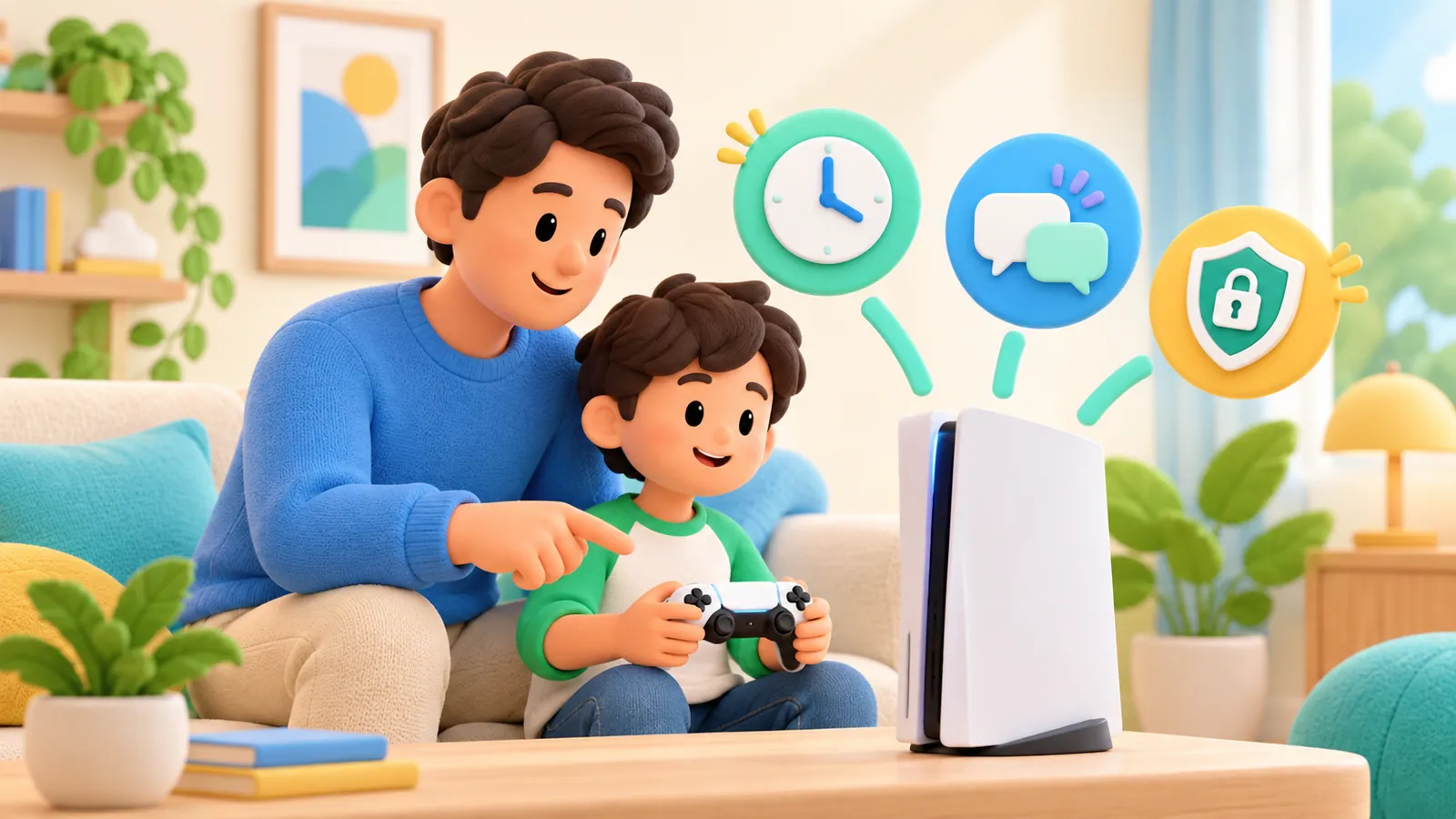
Start with your child's PlayStation account, then check the console they actually use. A family rule can look correct in an adult's settings while the child plays on a different profile. For PS5 and PS4, review four separate decisions: available games, communication, spending, and playtime.
This guide uses PlayStation's US support documentation checked September 15, 2026. It is a setup review, not a report of device testing. Keep the console nearby so you can confirm what your family sees.
Begin with the account, not the timer
Identify the family manager, the child's account, and any other adult appointed as a parent or guardian. Use the child's correct birth date. Avoid lending an adult account to make a blocked feature work; that changes the account to which your rules apply.
PlayStation says the child should complete email verification and sign in on the console. Its current routes are:
- PS5: Settings → Family and Parental Controls → Family Management.
- PS4: Settings → Parental Controls/Family Management → Family Management.
Select the child before editing. If settings change during play, PlayStation tells families to have the child sign out and back in. See the official parental controls instructions.
Keep a short family record: child account name, usual console, responsible adult, and where recovery information is stored securely. Do not include passwords in a shared checklist. When another caregiver supervises an afternoon, tell them which profile the child should use.
Work through two layers
The following is a planning checklist, not a claim that every row is one PlayStation switch.
| Account decisions | Console and household checks |
|---|---|
| The correct child belongs to the family | The child launches games from that profile |
| Adults agree on the permitted content | The chosen game opens under the child's account |
| Communication rules match the intended play group | Headset, party and game settings are reviewed together |
| Spending matches the family's plan | Adult sign-in and payment access remain private |
| Playtime uses the right time zone | The child knows what the ending notification means |
| Exceptions have a named decision maker | A caregiver knows how to respond without sharing adult credentials |
If a row is unresolved, deal with it before adding more restrictions. For example, a spending disagreement between adults will not be solved by setting a stronger game rating.
Review the game and the conversation separately
Ask the child to show you what they want to do inside a game. Playing a familiar sports title alone is a different request from joining a public voice group through it.
PlayStation's communication restriction covers text and voice communication and several types of user-created content; predefined in-game messages remain possible. Its support documentation also describes game-specific exceptions. An allowed game and an allowed conversation therefore deserve separate checks. PlayStation explains the restriction and exception process here.
Write an exception narrowly: the game, the feature, the people involved, and the review date. “Play with two cousins on Saturday” is something a family can discuss. “Allow whatever is needed” leaves the adult guessing.
Do not approve a request simply because it appears repeatedly. Ask what is blocked and whether the requested feature is necessary. A child can help explain the activity without being responsible for deciding all its risks.
Decide what happens when time runs out
PlayStation's playtime tools require a child in the family, an authorized adult, and the child's time zone. They let you choose permitted hours and duration, plus whether reaching the limit produces a notification or logs the child out. A child using PS5 and PS4 is subject to the account's playtime limits across both consoles. See PlayStation's playtime guide.
That ending choice matters. A reminder and an enforced ending produce different experiences. Tell the child which one you selected before the first session.
Build the plan around a stopping point the child can understand. In an illustrative household, dinner is at 6:30. The family agrees not to start another long match close to dinner, and to ask before accepting a late invitation. Those are household agreements, not built-in PlayStation features.
Try one ordinary session together. Watch the remaining-time display and ask the child to explain what they expect at the end. Avoid making an important tournament, purchased event, or sibling's turn your first test.
Make spending an explicit choice
PlayStation says a child's Store purchases use the family manager's wallet and that the default monthly spending limit is zero. Appointed parents or guardians can change that limit. Read the spending section.
Agree on who can approve a change. A limit should represent a deliberate family decision, not an amount copied from a guide. Before any purchase, check the item, account, price and whether it involves recurring billing. Raising a limit should not be a substitute for reading the purchase screen.
You can review the setup without buying anything. Look at the configured limit and stop before a transaction. If a previous charge is the problem, use PlayStation's purchase support; changing tomorrow's settings does not itself resolve yesterday's payment.
Use the current parent app carefully
The PlayStation Family app provides parental settings, playtime management and activity information. Its documentation distinguishes gameplay and communication requests and describes privacy management. It also notes that closing previously running games before the child signs in helps avoid inaccurate activity information. PlayStation Family app guide
Use activity as a starting point for a conversation. An unfamiliar title could be a sibling mix-up or a brief launch. Ask the child what happened before treating a number as a complete account of their day.
The parent app is a way to manage PlayStation settings from a phone. Installing another phone app does not automatically add controls to a console.
Finish with one repeatable check
At the next review, ask the child to show the profile, open an allowed game, identify the people they can communicate with, and explain how to request more time. Check the spending decision privately with the other responsible adult.
Keep the wider agreement in a family media plan. Revisit it after a new console, a new game, a birthday-related account change, or a new caregiver. A setup your family can explain is easier to maintain than a long list of settings nobody remembers choosing.
Sources
We identify organizations and evidence types so readers can evaluate each claim. See our editorial policy.
- How to set parental controls on PlayStation consoles — playstation.com.
- How to set playtime on PlayStation — playstation.com.
- How to manage your family on PlayStation Family app (US) — playstation.com.